

Popups
Storefront interventions that fire on real behavioural signals — with a held-back control group, so the reported revenue is incremental rather than gross.
A popup that appears after five seconds is a guess applied to everyone. A popup that appears when a shopper has rage-clicked the variant selector three times is a response to something that actually happened.
Popups is the intervention layer built on the data the tracker already collects. Same frustration, hesitation and intent signals that drive heatmaps and suggestions — used live, in the session, while the shopper is still there.
Component types
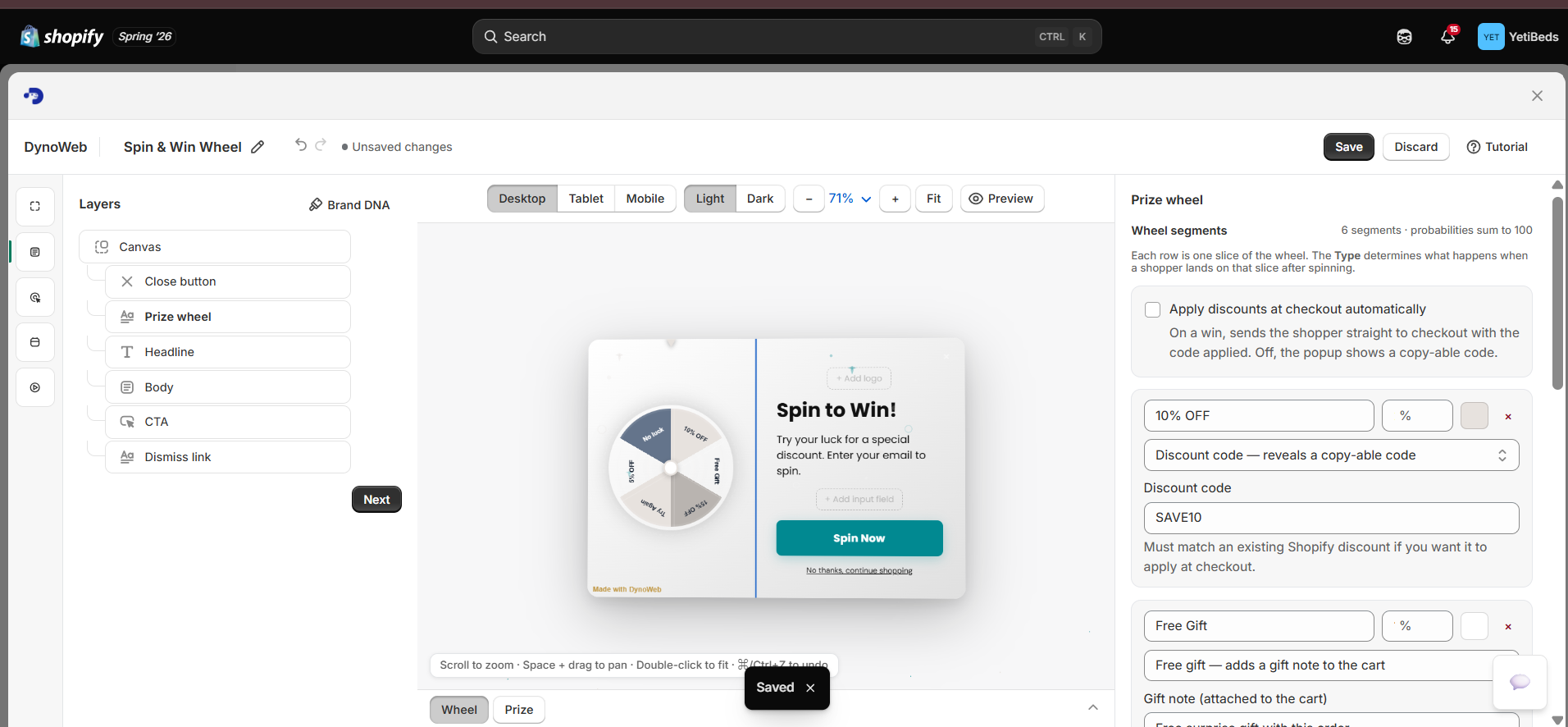
Eight ready-made components, all responsive, all rendered in your palette and typography via Brand DNA:
| Component | Form | Typical job |
|---|---|---|
| Promotional popup | Centred overlay | Discount offer, lead capture, announcement |
| Sticky announcement bar | Persistent top bar | Store-wide sale, free-shipping threshold, urgency |
| Exit-intent rescue | Overlay on leave intent | One last offer to a session that is going |
| Cart nudge | Bottom-corner card | Free-shipping progress, cart reminder |
| Social proof toast | Slide-in notification | Recent-purchase signals |
| Combo / bundle offer | Overlay | Cross-sell, raising average order value |
| Countdown timer | Urgency bar | Flash sale, time-limited promotion |
| Product badge | Label on product cards | "Selling fast", best-seller highlighting |
Behavioural triggers
This is what separates Popups from a popup app. Triggers read state, not elapsed time:
| Shopper state | Detected from | Sensible response |
|---|---|---|
| Frustrated browsing | Rage clicks, dead clicks, erratic cursor movement | Offer help, or a small discount for the trouble |
| Price hesitation | Long dwell on a product, variant switching, no add to cart | Surface a code, or address the specific objection |
| Cart abandonment risk | Items in cart plus stalling or leave intent | Free-shipping nudge, or completion prompt |
| High intent | Multiple product pages, deep scrolling, return visit | Welcome back, items still available |
| Scroll passers | Scrolling past a key section without engaging | Re-surface the missed CTA |
Manual triggers are available too — exit intent, scroll depth, time on page, cart value — for the cases where you already know what you want.
Building one
Pick a component
Or start from an AI suggestion. Popups reads your behavioural data and proposes interventions with the reasoning attached — "38% of product-page visitors rage-click the size selector; show a size guide with a small discount" — which you can accept, edit, or ignore.
Write the content
Headline, body, promo code, button text. Or generate it — the copy is conditioned on your extracted brand voice, and imagery can be generated and background-removed in the editor.
Choose the trigger
Behavioural or manual. This is the decision that determines whether the nudge is an intervention or an interruption.
Set conditions
Which pages, frequency per visitor, schedule window, and suppression rules so repeat visitors are not hammered. Frequency capping is not optional politeness — an over-fired nudge trains shoppers to dismiss on sight and poisons the measurement.
Preview, then publish
Desktop and mobile preview in the editor, then live. If the content includes a promo code, Popups creates the matching Shopify discount for you rather than making you set it up separately — and tears it down if the nudge is paused, so a paused nudge never leaves a live redeemable code behind.
Attribution: net, not gross
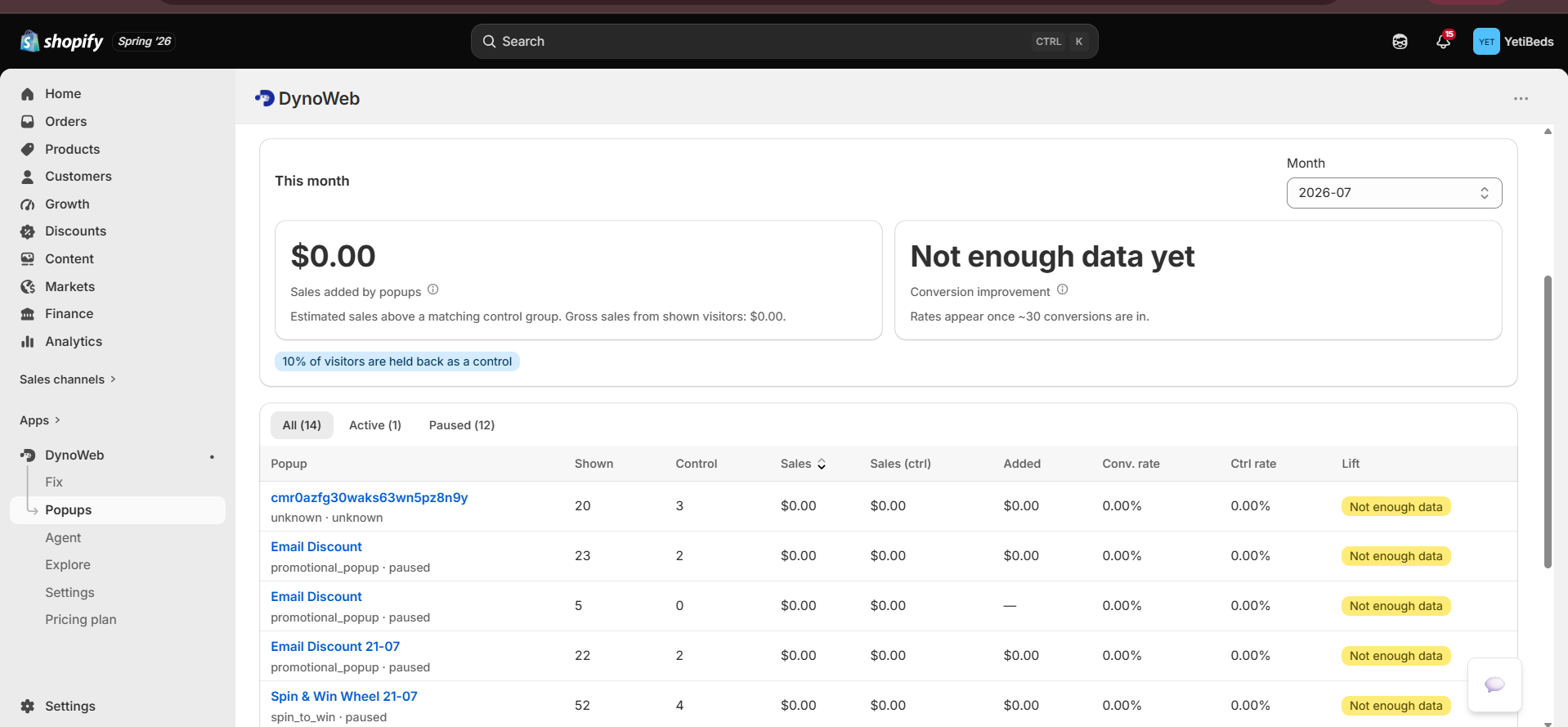
The number Popups reports is incremental
A share of eligible sessions is deliberately held back as a control group and shown nothing. Reported revenue is the difference between the treated group and that holdout — so it excludes the orders that would have happened anyway.
This matters because the easy version of this feature is to sum the revenue of every session that saw a nudge and call it "nudge revenue". That number is always larger and always wrong. A shopper who was going to buy, then saw a toast, is not revenue the toast created.
Available per intervention and in aggregate:
- Live dashboard — impressions, clicks, conversions today
- Per-intervention analytics — impressions, CTR, conversion rate, revenue trend
- Attribution view — incremental revenue per intervention, by month
- A/B testing — traffic split automatically between variants, with impressions, clicks, conversions and revenue per variant and a called winner
The same net figure feeds the dashboard's earned-this-month headline and the Impact page, so the three surfaces cannot disagree with each other.
Plan limits
Active interventions are capped per plan: 2 on Free, 5 on Growth, 15 on Pro, unlimited on Custom. A/B testing starts at Growth. Free can build and preview but not publish.
If a plan changes downward — a downgrade, or a failed charge — the newest interventions up to the new cap stay live and the rest are paused, not deleted. You are told which ones stopped, and their discounts are torn down with them. They come back on upgrade.
Limits
- A nudge is a response to friction, not a fix for it. A discount shown to someone rage-clicking a broken selector rescues that session and leaves the selector broken. Nudge the symptom while you fix the cause.
- Incremental attribution needs volume. The holdout comparison is a difference between two groups; on low traffic that difference is noisy. Early numbers on a small store are directional.
- Triggers fire on observed behaviour, so they inherit its ambiguity. Long dwell on a product page might be price hesitation or a phone left face-up on a table.
- Frequency capping is your responsibility. The controls are there; the defaults are conservative; a nudge set to fire on every page view will still do that.
- Interventions render on your storefront theme. A heavily customised or unusually structured theme can position a component imperfectly — which is what the desktop and mobile preview is for, before publishing.
Related
Cart Overview
Where the abandonment is, so the nudge targets the real step.
CRO Report
Sizes the leak a nudge is rescuing, so you know what it is worth.
Impact
Nudge revenue joins fix revenue in one measured monthly figure.
Common questions
Will this hurt my Core Web Vitals?
Nudges render client-side after the page is interactive and are not part of the initial layout, so they do not contribute to LCP or CLS on first paint. Storefront Speed will show you the real numbers on your theme.
Can I stop nudges from stacking on top of each other?
Yes. Frequency capping and priority rules mean a shopper sees at most the highest-priority eligible nudge, not every rule that happened to match.
Do nudges work on mobile?
Yes, with mobile-appropriate triggers — exit intent is desktop-specific, so on mobile it is replaced by signals like rapid upward scroll, back-navigation intent and dwell patterns.
How is attribution calculated?
Sessions eligible for a nudge are split, with a portion held back as a control. The revenue difference between exposed and held-back sessions is what gets reported, rather than crediting the nudge for every order that followed it.
Restyle
Describe a change to your storefront and Restyle writes the theme files. It works in a throwaway copy, checks the page still renders after every write, and hands you a draft to publish yourself.
SEO Autopilot
Scans your whole Online Store for empty or weak SEO fields, writes them, and applies through the Admin API — never theme files, always reversible, verified by read-back.